
RP ex PROXYMA Blog

Unlock the full potential of your online browsing experience with complete control using RP. Setting up a proxy in Firefox increases your privacy, helps you bypass geo-restrictions, and makes managing multiple accounts more efficient. Here’s how to start using RP ex Proxyma proxies in Firefox and get the most out of them, both in performance and security.
To ensure a stable session with the same IP address, you must add the -session parameter to your username. This is crucial, as RP proxies can change IP addresses by default. Therefore, using session-based authentication ensures consistency when managing accounts and automated tasks.
If you’re new to RP, simply use ISP or Datacenter RP proxies through RP ex Proxyma as a service if you’re only browsing the web. Note that proxy servers for private users work seamlessly with your browser, offering instant access.
Therefore, for bulk actions such as creating accounts or working with multiple accounts, it is recommended to use dedicated ISP static proxy servers to get one IP address per account.
Here’s how you can set up RP in Firefox:

Step 1: Launch Firefox
Open Firefox.
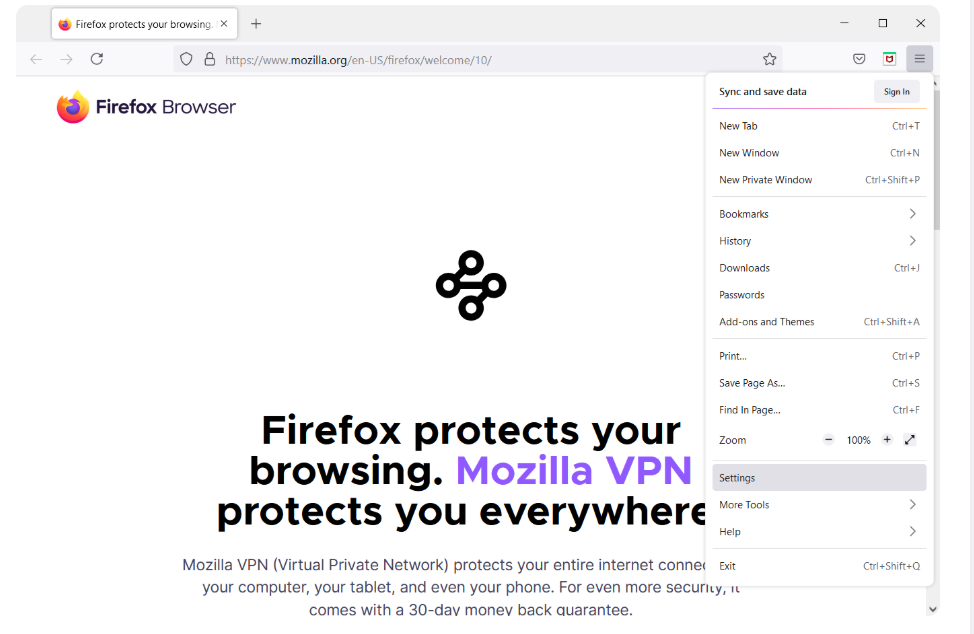
Click on the menu icon (three horizontal lines) located in the upper right corner.
From the drop-down list, select Settings.
Step 2: Open Network Settings
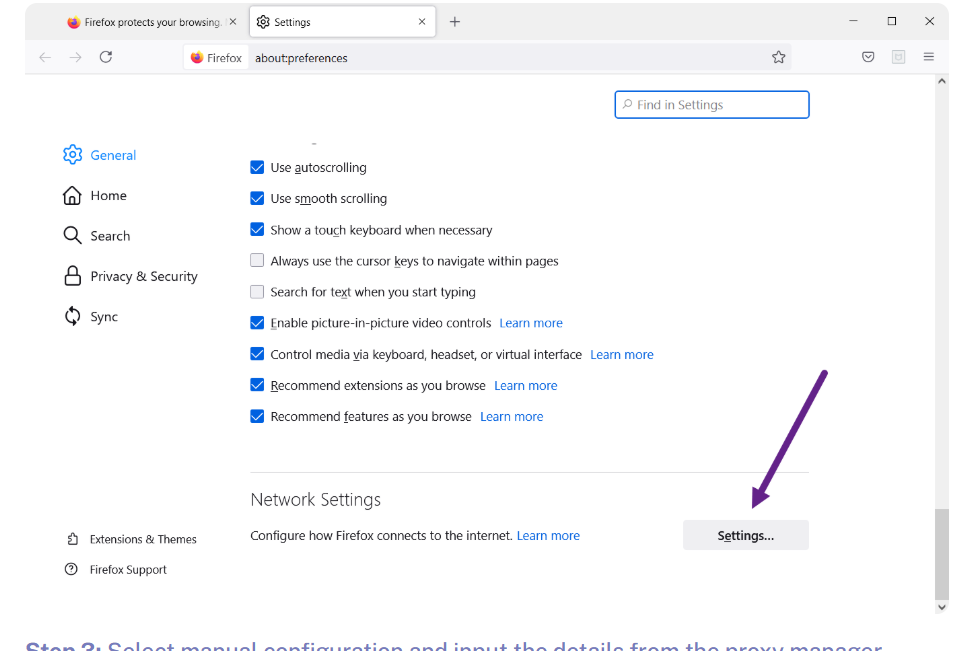
Go to Network Settings.
Click the Settings button to open the Connection Settings dialog box to configure the proxy server.
Step 3: Configure the proxy server manually
In the connection settings window:
Select “Manual proxy settings”.
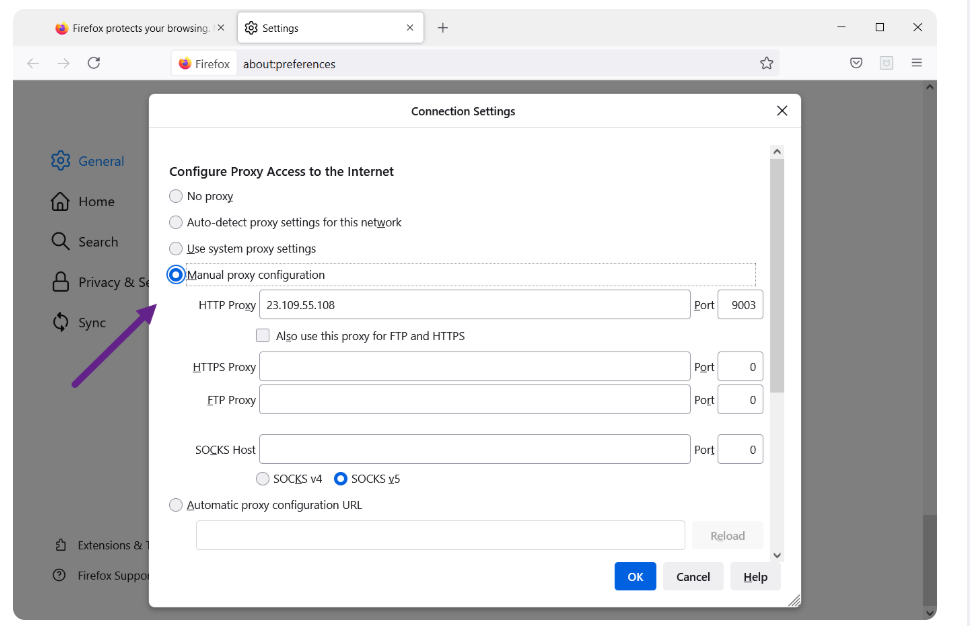
Please fill in as follows:
Authentication: username/password, if any
Port: port number
Settings are complete.
That’s all you have to do.
HTTP Proxy: Enter the RP server address (e.g. https://residentialproxies.net/)
Port: Use the port number specified in the RP control panel.
(Optional) Check the “Use this proxy server for all protocols” checkbox if you want to use the same proxy for HTTPS, FTP, or any other protocols.
If you are using a SOCKS proxy, select SOCKS v5 and enter your SOCKS server details.
Step 4: Enter your authentication details
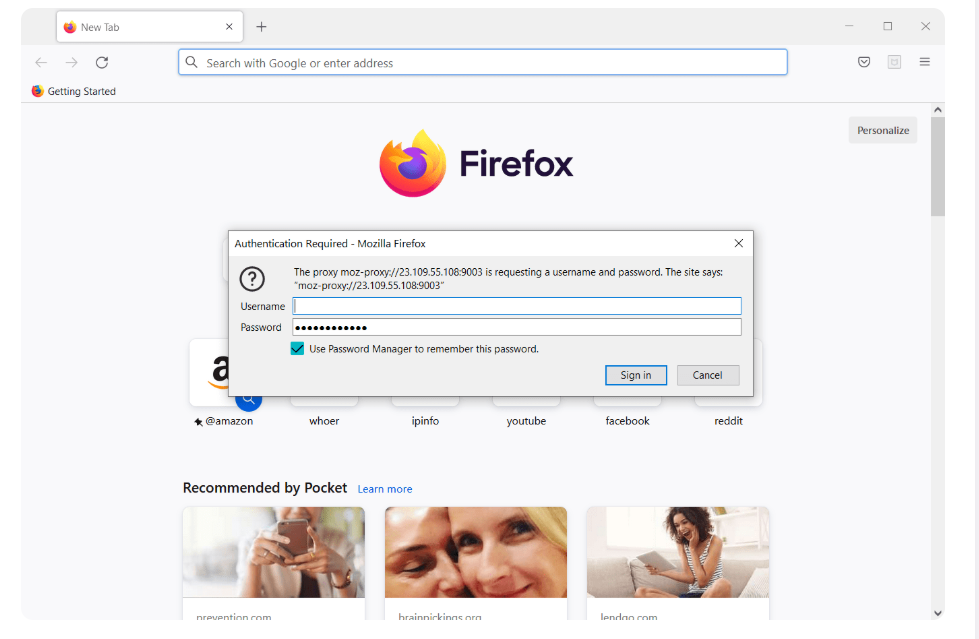
When logging into your RP account or proxy control panel, enter your username and password as required by Firefox.
This will be secure access with session tracking.
Error: “Software prevents Firefox from connecting securely to this site”
This is usually due to either a restricted website or a website blocked by a proxy service. Specifically, proxy services and high-security websites like Google trigger this message for users like RP, depending on the type of proxy server used: data center or mobile.
To test your proxy server, visit the recommended test page on RP or simply visit another website.
Your Firefox browser is configured with RP proxy servers. Whether you’re managing multiple accounts, scraping, or browsing securely, RP lets you do it safely and securely.
Looking for a specific article?
Available categories